
Extract ComfyUI Workflow
Upload a PNG image generated by ComfyUI to extract and download its embedded JSON workflow.
Embedded ‘workflow’ JSON (UI Layout)
No workflow data found.
Embedded ‘prompt’ JSON (Execution Graph)
No prompt data found.
ComfyUI Resource Extractor | Extract ComfyUI Resources from PNG & JSON Free
Free ComfyUI Workflow Extractor: Get JSON from PNGs Easily
Have you ever created an amazing AI image in ComfyUI, only to realize you lost the node setup that made it? Don’t worry! Our free ComfyUI Workflow Extractor is here to help.
This simple, web-based tool allows you to upload any ComfyUI-generated PNG image and instantly extract the hidden workflow and prompt data. You can view the code right in your browser or download it as a JSON file to load straight back into ComfyUI.
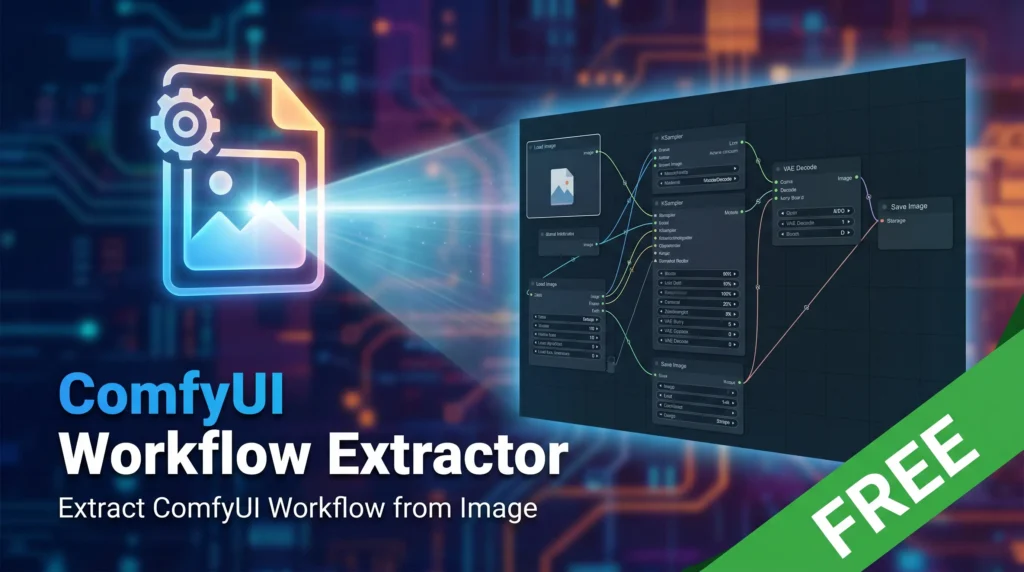
Table of Contents
What is a ComfyUI Workflow Extractor?
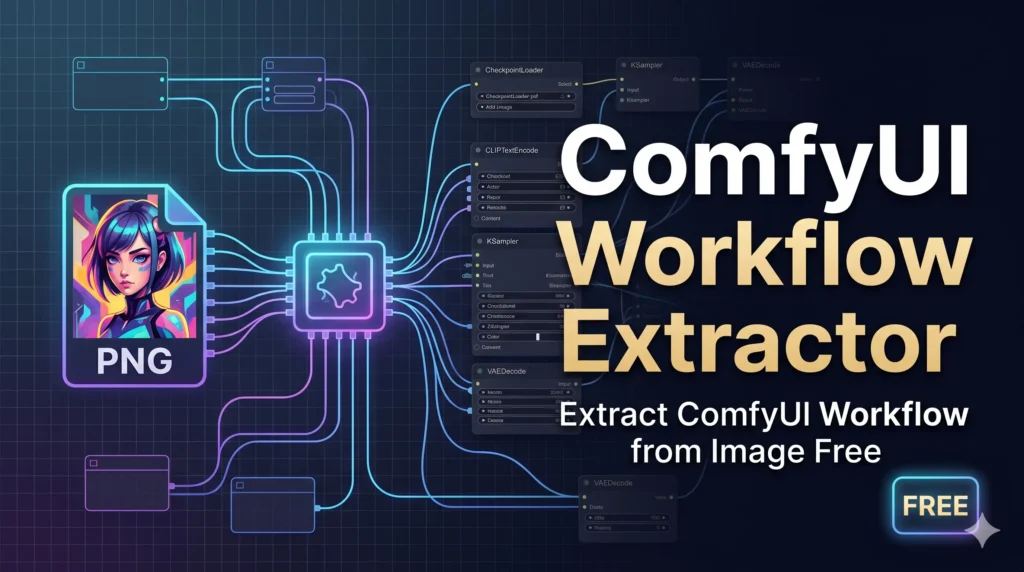
When you generate an image using ComfyUI, the software secretly saves your entire “recipe” inside the PNG image file. This recipe includes:
- The Workflow: The exact visual layout of all the nodes you used.
- The Prompt: The execution data that tells the AI exactly what to do.
Our extractor tool reads the hidden text inside your image, finds this data, and pulls it out for you. It turns a regular picture back into a reusable AI workflow.
Why Use Our Tool?
- 100% Private and Secure: Your images are never uploaded to a server. The extraction happens entirely inside your own web browser, meaning your data stays strictly on your computer.
- No Installation Required: You don’t need to install Python, custom nodes, or any extra software. Just open the page and use it.
- Download as JSON: With one click, you can download the extracted data as a
.jsonfile, ready to be dragged and dropped directly into your ComfyUI workspace. - Lightning Fast: Because it runs locally on your device, the extraction happens instantly.
How to Extract a Workflow from a ComfyUI Image
Using the tool is incredibly easy. Just follow these simple steps:
- Upload Your Image: Click the upload box and select the PNG image you generated in ComfyUI.
- View the Data: If the image contains ComfyUI metadata, the tool will instantly display the “Workflow” (UI layout) and the “Prompt” (API graph) on your screen.
- Download JSON: Click the “Download Workflow” or “Download Prompt” buttons to save the code to your computer.
- Load into ComfyUI: Open ComfyUI, click “Load,” and select your new JSON file to recreate your node setup!
Frequently Asked Questions (FAQ)
Why does the tool say “No workflow data found”?
If our tool cannot find the workflow, it usually means the image’s metadata was removed. When you upload images to social media sites like Discord, Reddit, or WhatsApp, they automatically compress the image and delete the hidden text to save space. Always use the original PNG file saved directly from ComfyUI.
Does this work with Automatic1111 or WebUI images?
No. This specific tool is designed only to read the unique TEXT chunks used by ComfyUI. Other interfaces save their data differently.
Can I use this on my mobile phone?
Yes! Because it is a simple web tool, you can use it on your smartphone, tablet, or desktop computer. Just select an image from your phone’s gallery.
Is the tool free?
Yes, this tool is 100% free to use with no limits.